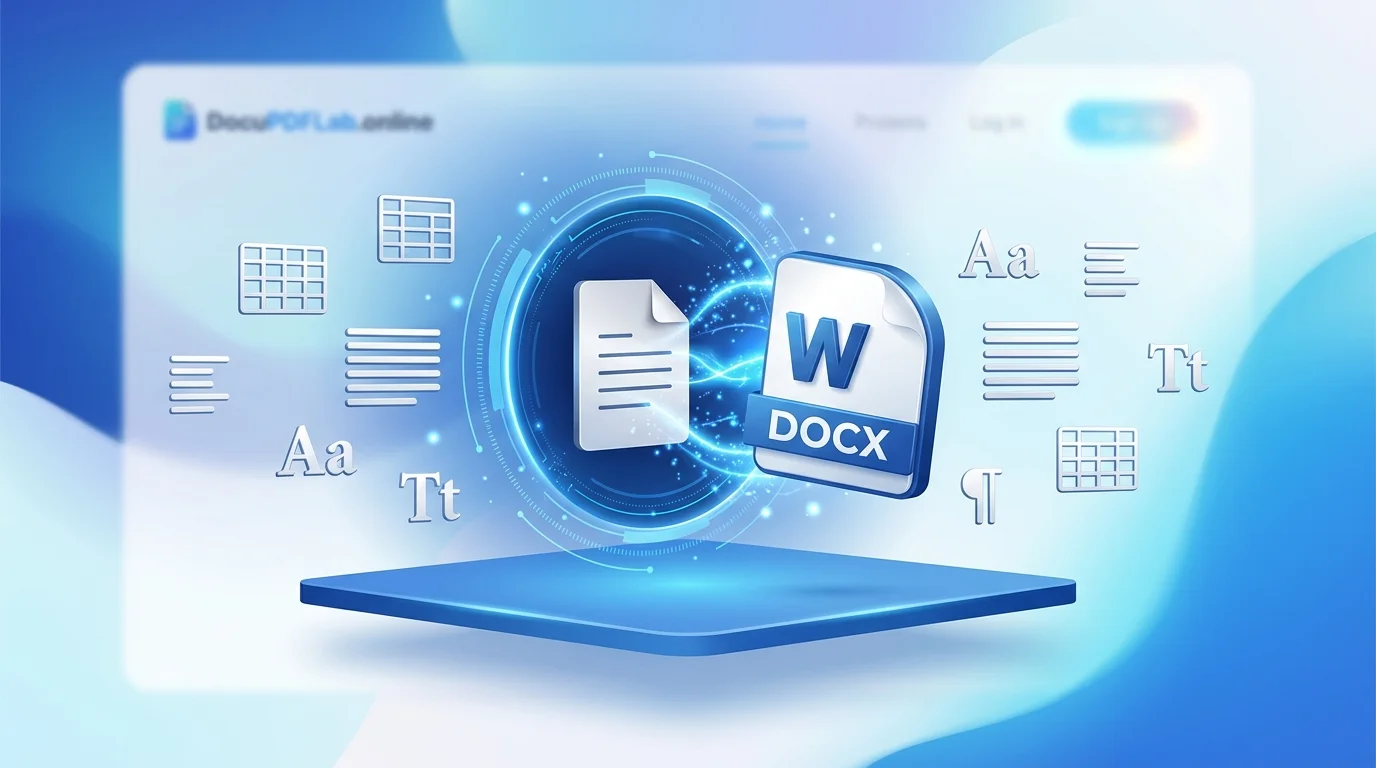
How To convert a PDF to Word without losing formatting for free online, navigate to DocuPDFLab, upload your PDF document, select DOCX conversion, and click Convert. DocuPDFLab’s document layout engine parses structural elements—including nested tables, multi-column flows, custom embedded fonts, vector artwork, and inline imagery—to deliver a fully editable Microsoft Word document with precise layout fidelity.
The Technical Reality Behind PDF Formatting Loss
When users attempt to convert a PDF back into an editable Microsoft Word document (.docx), they frequently encounter broken layout structures, misaligned text boxes, fragmented tables, missing typography, and scrambled column orders. Understanding the underlying architectural differences between the portable document format and reflowable word processing formats helps explain why traditional conversion tools fail—and why advanced parsing engines are necessary.
Fixed Coordinate Space vs. Reflowable Document Models
The fundamental reason formatting distorts during basic conversion lies in how both file formats render text and visual elements:
- PDF Architecture (Fixed Positioning): Developed by Adobe in the early 1990s, the PDF specification was designed as a digital representation of a physical printed page. Content in a PDF is hard-coded using precise absolute coordinate spaces ($X, Y$ coordinates relative to the page boundary). A line of text in a PDF is often not stored as a cohesive paragraph; rather, it exists as individual character glyphs positioned at absolute spatial offsets.
- Microsoft Word Architecture (Reflowable Layout): Word processing formats like
.docxoperate on a reflowable layout model. Text flows dynamically based on a hierarchical tree of structural tags: sections, paragraphs, runs, inline shapes, margins, line spacing rules, and relative positioning properties.
When a basic conversion algorithm attempts to translate a PDF to Word, it must guess how isolated glyph coordinates map to semantic paragraphs and structural containers. Miscalculating these relationships leads to text boxes overlapping, extra paragraph breaks in the middle of sentences, and broken alignment.
Missing Font Metrics and Font Substitution
Typography preservation represents another major hurdle during document conversion:
- Subset Font Embedding: To keep file sizes small, PDF creation software rarely embeds complete font families. Instead, it embeds only a subset containing the specific character glyphs used within that specific document.
- Missing Local Fonts: When you open a converted document on your computer, Microsoft Word checks your system’s local font library. If the original font metric tables are not present locally or properly defined in the document file, Word executes a dynamic font substitution.
- Metric Shift Discrepancies: Substituting a font like Helvetica Neue with Arial introduces subtle micro-character spacing variations (kerning and tracking differences). Over a 20-page document, these fractional differences compound, causing line wraps to shift, paragraphs to spill over onto extra pages, and table text to overflow cell boundaries.
Scanned PDFs and Vector Art Degradation
A major point of friction occurs when users attempt to convert scanned paper documents or image-only PDFs:
- Raster-Only Documents: Scanned PDFs contain no true text vectors; they are simply high-resolution bitmap images wrapped inside a PDF container. Basic conversion utilities cannot read this text, outputting either a blank Word file or a Word document that simply embeds the static scan as an uneditable background image.
- Vector Path Vectorization: Graphical elements, decorative rules, charts, and brand icons inside native PDFs are defined using vector path instructions. Converting these into editable Word shapes requires a translation layer capable of distinguishing vector drawings from regular text frames.

How to Convert PDF to Word Without Losing Formatting Free Online Using DocuPDFLab
DocuPDFLab uses structural layout analysis and automated optical character recognition to retain every design detail, column structure, table row, and custom font mapping from your source file.
[User Uploads PDF] ──> [256-Bit SSL Encryption] ──> [Layout & Structural Analysis]
                                                                │
                                              ┌─────────────────┴─────────────────┐
                                              ▼                                   ▼
                                    [Native Vector Path]                 [Scanned Graphic Image]
                                              │                                   │
                                    [Structural Reconstruction]          [Deep OCR Extraction]
                                              │                                   │
                                              └─────────────────┬─────────────────┘
                                                                ▼
                                                  [Editable .DOCX Output Generated]
Step 1: Upload Your PDF Document Safely
- Open your desktop or mobile browser and navigate to DocuPDFLab.
- Click the Select PDF File button, or drag and drop your PDF directly into the secure processing frame.
- You can also import files directly from connected cloud storage drives like Google Drive or Dropbox.
- Your file transmission is instantly protected by enterprise-grade 256-bit SSL encryption to guarantee total privacy.
Step 2: Configure Layout Preservation Options
- Verify that PDF to Word (DOCX) is designated as your desired output target.
- Choose your document processing filter:
- Standard Structural Conversion: Ideal for original digital PDFs containing select-ready text, embedded spreadsheets, vector diagrams, and complex form structures.
- Deep OCR Reconstruction: Recommended for scanned paper contracts, legacy documents, or image-only PDFs. This engine identifies character glyphs across multi-language datasets while maintaining target line spacing and structural alignments.
- Click Convert to Word to trigger cloud execution.
Step 3: Download Your Editable Word File
- Allow 3 to 10 seconds for the structural reconstruction engine to finish processing the layout matrix.
- Click Download Word Document to save the reconstructed
.docxfile to your target local directory. - Launch the file inside Microsoft Word, Google Docs, Apple Pages, or LibreOffice Writer to edit text, alter values, update images, and export clean documentation without fixing broken formatting.
Advanced Strategies to Ensure Perfect Formatting Preservation
While DocuPDFLab automates the underlying technical conversion process, incorporating smart prep strategies before and during file conversion ensures high-fidelity results even across complex enterprise documentation.
Pre-Conversion Optimization Practices
Preparing your source PDF file prior to triggering the conversion workflow reduces output errors and speeds up cloud processing times.
- Audit Document Protection Settings: Ensure your PDF is not encrypted with permission passwords that restrict content extraction or text copying. Remove security restrictions in your administrative console prior to upload.
- Normalize Page Rotations: If your PDF contains horizontal tables or landscape-oriented pages mixed with vertical portrait text, ensure all pages are oriented correctly up top before starting conversion. Misaligned page angles can cause the layout engine to misidentify block directions.
- Flatten Form Fields: For interactive PDF forms with active fillable text fields, flatten the form layer first if you wish to preserve user inputs as static paragraph text inside Microsoft Word.
+-----------------------------------------------------------------------+
|                       PRE-CONVERSION CHECKLIST                        |
+-----------------------------------------------------------------------+
| [ ] Remove administrative copy/print restrictions                     |
| [ ] Rotate orientation so all text reads right-side-up                |
| [ ] Ensure scanned DPI resolution is at least 300 DPI for OCR tasks  |
| [ ] Flatten active interactive form layers where necessary           |
+-----------------------------------------------------------------------+

Handling Complex Multi-Column Layouts and Sidebars
Magazine articles, academic papers, product datasheets, and newsletters frequently utilize multi-column page grids accompanied by floating sidebars or callout quote boxes.
- Avoid Text Frame Explosions: Inferior conversion tools turn every paragraph in a multi-column document into an isolated, absolute-positioned floating text box. This creates an editing nightmare where adding a single line of text pushes content over neighboring text boxes instead of reflowing down the page.
- Native Table and Column Mapping: DocuPDFLab detects the primary reading order flow (top-to-bottom, left-to-right) and maps multi-column regions into native Microsoft Word section breaks or column definitions. This allows text to reflow naturally across column boundaries when edited.
Comprehensive Technical Comparison Matrix
Understanding how different conversion strategies perform across varied document types helps select the right tool for specific productivity requirements.
| Performance Vector | DocuPDFLab.online | Adobe Acrobat Pro | Native Microsoft Word Import | Copy & Paste Method |
| Pricing Tier | 100% Free | Paid Subscription Required | Requires Office License | Free |
| Table Layout Preservation | High (Maps to native .docx grids) | High (Preserves cell structure) | Moderate (Cells often break into text) | Low (Loses all grid boundaries) |
| Multi-Column Flow Reconstruction | Automated Section Reflow | High | Variable (Creates floating frames) | Poor (Scrambles column order) |
| Scanned Document Support (OCR) | Integrated (Free) | Integrated (Paid Tier) | Basic Image Processing | None |
| Processing Speed (10-Page File) | 3–5 Seconds | 5–10 Seconds | 10–20 Seconds | Manual (15+ Minutes) |
| Cross-Platform Compatibility | Universal Web (Any OS) | OS Desktop App / Cloud | Desktop Application | Universal |
| Software Footprint | Zero (Cloud-based) | High Disk Storage | High Disk Storage | Zero |
Security, Privacy, and AdSense-Safe Data Handling Rules
In an era of increasing digital security regulations (such as GDPR, CCPA, and HIPAA), processing sensitive files through online utilities requires strict, transparent privacy practices.
                    DOCUMENT TRANSMISSION & STORAGE TIMELINE

 [User Upload] ──────> [SSL/TLS 256-Bit Tunnel] ──────> [Isolated Cloud Processing Environment]
                                                                        │
                                                                        ▼
 [Permanent Deletion] <────── [60-Minute Expiration Timer] <────── [User Downloads File]
Enterprise-Grade Encryption Protocols
Every connection established between your device and DocuPDFLab.online is secured with TLS 1.3 encryption and 256-bit SSL certificate handshakes. This prevents any third party, hacker, or intermediate node on public Wi-Fi networks from inspecting, intercepting, or copying data payloads during transit.
Strict Automated File Deletion Schedules
- No Permanent Server Storage: Uploaded source files and generated output files are held in temporary cloud storage buckets designated solely for processing tasks.
- Automated Expiration Timers: Internal cleanup routines automatically wipe all customer uploads and processed documents permanently after 60 minutes.
- Zero Human Data Review: Conversion routines are fully automated. System engineers and server administrators cannot access, inspect, or manually review file contents at any stage during processing.
Data Privacy Regulations Compliance
DocuPDFLab operates under privacy-first data handling standards:
- No Account Registration: Users are not required to provide personal identifying information, link credit cards, or register email accounts to access document conversion workflows.
- No Profiling or Metadata Tracking: Content within user files is never parsed for advertising metrics, demographic profiling, keyword targeting, or artificial intelligence model training datasets.
In-Depth Troubleshooting Guide for Common Conversion Issues
When working with poorly formatted or corrupted source PDFs, structural issues can still manifest during conversion. Use these expert techniques to identify and resolve formatting bugs.
                             TROUBLESHOOTING DECISION TREE

                                 [Is Converted File Broken?]
                                              │
                    ┌─────────────────────────┴─────────────────────────┐
                    ▼                                                   ▼
         [Text is Uneditable / Scanned]                        [Formatting is Shifted]
                    │                                                   │
        (Re-run with OCR Enabled)                           (Check missing fonts / styles)
                    │                                                   │
                    ▼                                                   ▼
     [Editable Text Successfully Created]               [Standardize Fonts to Arial/Calibri]
Troubleshooting Problem 1: Converted Text Renders as Gibberish or Strange Symbols
- Root Cause: The source PDF contains corrupt font encoding tables or non-standard CID font mappings. While the visual page looks correct on screen, the underlying text character codes do not map to valid Unicode characters.
- Diagnostic Step: Try highlighting and copying a sentence directly out of the source PDF file using your regular PDF reader, then paste it into a standard text editor like Notepad. If the pasted output displays as garbled characters, the PDF has corrupted font mapping tables.
- Resolution Strategy: Re-run the PDF through DocuPDFLab using the Deep OCR Mode. This forces the system to bypass corrupt vector glyph maps and visually re-read character shapes from scratch using computer vision, yielding valid Unicode text in the final Word file.
Troubleshooting Problem 2: Tables Spacing Out or Collapsing Cell Content
- Root Cause: The PDF author built the table visually by drawing separate vector lines and placing unanchored text boxes over top, rather than creating a true structural table object.
- Resolution Strategy:
- Open the converted document inside Microsoft Word.
- Select the distorted table area and navigate to Table Design > Borders.
- Click All Borders to visualize the invisible cell margins.
- Use Word’s native Distribute Rows Evenly and Distribute Columns Evenly tools to standardize row heights and cell widths instantaneously.
Troubleshooting Problem 3: Paragraph Lines End With Unwanted Hard Returns
- Root Cause: The original PDF engine inserted hard line breaks (paragraph returns) at the end of every line to force page wrapping inside fixed coordinate spaces.
- Resolution Strategy:
- Open the
.docxfile in Microsoft Word. - Press $Ctrl + H$ (or $Cmd + H$ on macOS) to launch the Find and Replace dialog.
- In the Find what field, enter
^p(the code for a paragraph mark). - In the Replace with field, type a single space character.
- Use this method on highlighted blocks to quickly merge fragmented lines back into clean, continuous reflowable paragraphs.
- Open the
Step-by-Step Use Cases Across Key User Groups
DocuPDFLab offers practical daily solutions for various professional and personal scenarios.
1. Job Seekers & Resume Formatting
Job seekers frequently receive past resume copies saved strictly in PDF format. Retaining immaculate alignment across bullet points, job title headers, date columns, and custom border lines is critical when updating employment history for Applicant Tracking Systems (ATS).
- The Challenge: ATS scanners often misread floating text frames created by poor converter tools, dropping entire work history sections from automated candidate screening.
- The DocuPDFLab Solution: Reconstructs resumes using linear structural paragraphs and standard tab stops instead of floating text boxes, ensuring ATS software accurately indexes every skills section, work history entry, and credential.

2. Students & Academic Researchers
Students frequently need to excerpt quotes, tables, statistical charts, and bibliography citations from academic journal articles locked inside multi-column PDF files.
- The Challenge: Retyping complex mathematical formulas, footnotes, and multi-column study data manually wastes valuable research time and invites transcription errors.
- The DocuPDFLab Solution: Automatically isolates citation blocks, retains structural footnote references, and converts empirical data tables directly into editable Microsoft Word tables ready for instant analysis.
3. Business Professionals & Legal Teams
Office workers continuously negotiate contracts, revise proposals, and update corporate policy documentation where source editable files (.docx) have been misplaced or archived.
- The Challenge: Manual document re-keying costs organizations hours of paid productivity and increases the risk of critical typographical errors in legal agreements.
- The DocuPDFLab Solution: Delivers rapid document reconstruction while maintaining legal clause numbering, indentations, header/footer text blocks, and signature block alignments.
Frequently Asked Questions (FAQ)
How do I convert a PDF to Word without losing formatting for free?
You can convert your PDF file without losing formatting by visiting DocuPDFLab, uploading your document into the conversion area, choosing DOCX as your output target, and running the structural conversion engine. The tool automatically maps fonts, margins, vector graphics, and tables into reflowable Word elements.
Why does my document layout shift when I open converted files in Microsoft Word?
Layout shifts generally occur when a PDF uses custom fonts that are missing from your computer’s local operating system, or when basic conversion tools use floating text boxes instead of native paragraph flows. DocuPDFLab minimizes this by mapping visual structures directly to native Word structural tags and using standard fallback typography metrics.
Can I convert a scanned PDF into an editable Word document without losing alignment?
Yes. DocuPDFLab includes built-in Optical Character Recognition (OCR) technology that scans visual image layers, converts pixel shapes into editable text vectors, and places them within reconstructed paragraph and table grids matching the original document’s spatial layout.
Is it safe to upload confidential business contracts to DocuPDFLab.online?
Yes. All incoming and outgoing data transfers are protected via end-to-end 256-bit SSL encryption tunnels. Furthermore, DocuPDFLab enforces strict data privacy rules that automatically purge all uploaded files and converted outputs permanently from temporary server caches within 60 minutes.
Does converting a PDF to Word alter or delete my original file?
No. The original source PDF file stored on your local computer or mobile device remains completely untouched. The online conversion engine reads your uploaded copy and generates a separate, brand-new .docx file for you to download.
How do I convert PDF tables to Word without breaking table cell boundaries?
Upload your document to DocuPDFLab and ensure the standard structural layout engine is selected. The system automatically detects internal line grids, cell padding properties, and row heights, outputting a native, fully editable Microsoft Word table object rather than disconnected lines of loose text.
Streamline Your Daily Document Workflows
Retaining complete formatting when converting PDFs into editable Microsoft Word documents no longer requires expensive software subscriptions, manual copy-pasting, or hours of frustrating layout corrections. By utilizing the layout reconstruction engine at DocuPDFLab, you can convert multi-column layouts, complex financial tables, scanned contracts, and formatted resumes in seconds. Bookmark DocuPDFLab today to simplify your daily document editing, conversion, and productivity needs.
2 Responses